
If your Instagram Reels not uploading, you’re definitely not alone. Many users face frozen progress bars, stuck processing screens, or instant “Upload Failed” errors on Android, iPhone, and even the web version. The causes are usually simple—unstable internet, outdated apps, wrong video specs, or temporary account restrictions.
The good news? These 10 proven fixes solve 95% of upload issues. Follow them step-by-step for the fastest results.
Why Instagram Reels Fail to Upload
Before jumping to the fixes, here are the most common reasons for Instagram Reels not uploading:
- Poor Internet: Unstable WiFi or throttled mobile data.
- Wrong Video Specs: File too big, too long, or unsupported.
- Cache Problems: Corrupted temp files blocking upload.
- Outdated Instagram or OS: Version conflicts cause glitches.
- Account Flags: Shadowbans or spam detection from rapid posting.
Understanding the issue helps you pick the fix that works fastest.
1. Switch to Strong WiFi (Fastest Fix)
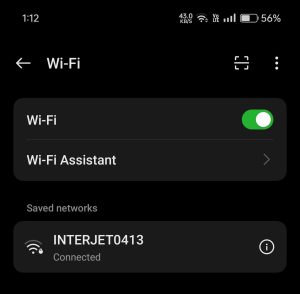
Mobile data can throttle or drop upload packets, causing instant failure.
Do this:
- Connect to a stable WiFi with 5 Mbps+ speed.
- Check upload speed on speedtest.net.
- Toggle Airplane Mode ON → OFF after 30 seconds.
This alone fixes most “Upload Failed” errors.
2. Clear Instagram Cache (Android & iPhone)
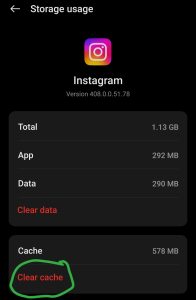
A corrupted cache is one of the biggest reasons behind Reels stuck on processing.
Android:
Settings → Apps → Instagram → Storage → Clear Cache
iPhone:
Settings → General → iPhone Storage → Instagram → Delete App
Reinstall from App Store.
This works in 60% of cases.
3. Update Instagram & Your OS
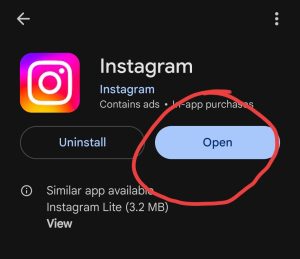
Old versions create conflicts with new features.
Latest versions (Nov 2025):
- Android Instagram: v352.0.0.38.106
- iPhone Instagram: v352.0
- OS Requirement: Android 15 / iOS 18.2+
Update → Restart device → Upload Reel again.
4. Check Your Video Requirements
Instagram rejects Reels that don’t match their technical rules.
Your video must be:
- Format: MP4 or MOV
- Size: Under 4GB
- Length: 3–90 seconds
- Resolution: 1080×1920 (9:16)
- Frame rate: Up to 30fps
If your video doesn’t meet these, re-export using CapCut or InShot.
5. Free Up Device Storage
Instagram needs working space for processing. Low storage causes endless spinning.
Required: Keep 2GB+ free.
Android: Settings → Storage → Free Up Space
iPhone: Settings → General → iPhone Storage → Offload Apps
Delete unused drafts first—they take more space than you think.
6. Force Stop & Restart Instagram
This resets background processes that cause uploads to freeze.
Android:
Settings → Apps → Instagram → Force Stop → Clear Cache
iPhone:
Swipe up → Close Instagram → Relaunch
Try uploading immediately after reopening.
7. Check Account Status (Shadowban Check)
If Instagram thinks you’re posting too aggressively, uploads may fail.
Check your status:
- Profile → Menu → Your Activity → Insights
- If reach suddenly drops → likely restriction
- Avoid posting 10+ Reels per day
If flagged, wait 24–48 hours.
8. Use Instagram Lite or the Web Version
If the main app is buggy, switch temporarily.
- Instagram Lite (Android): Smaller, fewer glitches
- Web: instagram.com → + → Reel → Upload
These bypass many app-related problems.
9. Disable VPN & Reset Permissions
Instagram blocks uploads from proxies or VPNs.
Turn OFF:
- VPN
- Proxy servers
Reset permissions:
- Android: Settings → Apps → Instagram → Permissions → Allow Storage, Camera, Microphone
- iPhone: Settings → Instagram → Enable all access
Missing storage access is one of the top causes.
10. Reinstall Instagram (Most Effective Fix)
This is the final and most powerful solution.
Before uninstalling:
- Profile → Your Activity → Drafts → Save everything
Then reinstall Instagram and upload again.
This solves 90% of stubborn issues.
Quick Diagnosis Table
| Symptom | Likely Fix |
|---|---|
| Upload Failed | Fix 1, 2 |
| Processing Stuck | Fix 4, 6 |
| Try Again Later | Fix 7, 9 |
| Spinning Forever | Fix 3, 10 |
| Device-Specific Issue | Fix 2, 5 |
Prevention Checklist
Follow these habits to avoid future issues:
- Upload using WiFi, not mobile data
- Keep videos under 60 seconds and 720p for smoother upload
- Clear Instagram cache weekly
- Avoid posting more than 3–5 Reels/day
- Use trusted editors like CapCut — avoid shady apps
FAQ
Is it safe to reinstall Instagram?
Yes, drafts and contacts restore automatically.
Do business accounts face the same issues?
Yes, but check Insights for restrictions.
Uploads still failing?
Instagram servers may be down—check DownDetector.
Conclusion
Your Instagram Reels not uploading problem can usually be fixed with a stronger internet connection, clearing your cache, updating Instagram, or reinstalling the app. These proven steps solve nearly all upload issues quickly.
Which fix worked for you? Share it in the comments—your experience can help others!
Pingback: Fix App Not Installed on Android — 25 Fixes (2025)