
When apps like WhatsApp, Instagram, PUBG Mobile, or even basic system tools suddenly crash on Android, it disrupts everything.
The good news: Most app crashes on Android 15 devices can be fixed quickly with a structured troubleshooting approach.
This 2025 guide walks you through 15 proven, user-reported solutions that solve 90% of app crashes—including messaging apps, heavy mobile games, and background-intensive applications.
Let’s fix your device step-by-step.
Why Do Android Apps Crash in 2025?
Before applying fixes, it helps to understand the common triggers behind app instability. The most common culprits include:
- Corrupted app cache or data
- Outdated app versions incompatible with Android 15
- Low RAM or insufficient storage
- Restrictive battery optimization settings
- VPN or proxy interference
- Faulty OS updates or system processes
- Third-party apps causing conflicts
- Weak or unstable network connectivity
The solutions below address all of these issues systematically.
15 Proven Solutions to Fix Android App Crashes
1. Restart Your Device
A simple reboot solves many temporary glitches.
How this helps: Restarting clears short-term memory, resets background processes, and removes temporary conflicts that cause apps like WhatsApp or mobile games to freeze or close unexpectedly.
How to do it:
- Hold the Power Button.
- Tap Restart or Power Off.
- If powering off, wait 30 seconds before turning on.
This should always be your first step.
2. Clear App Cache
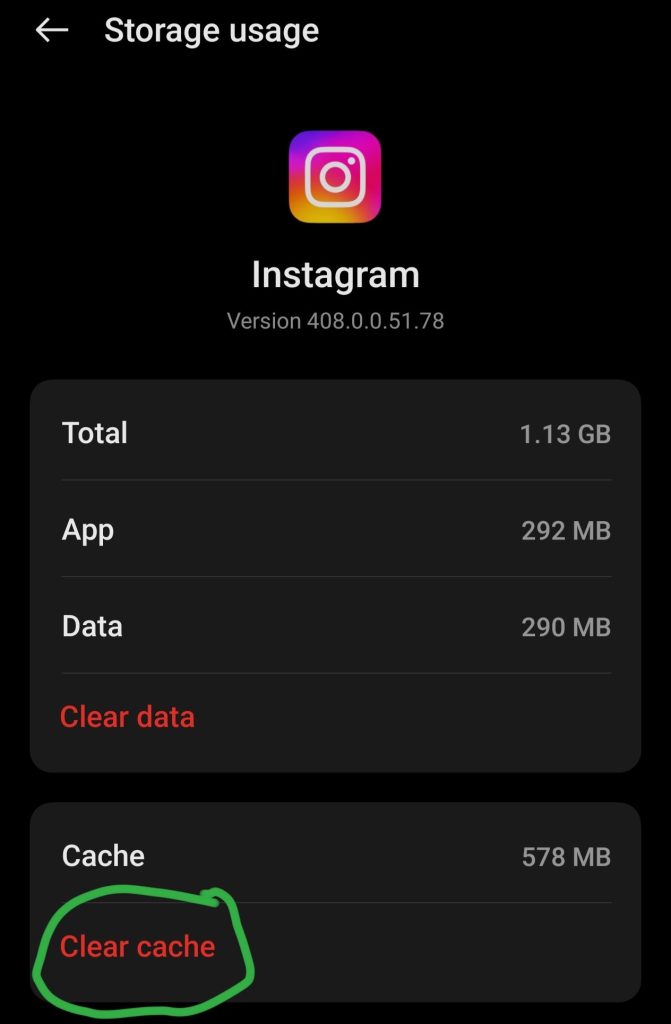
Corrupted cache is one of the most common causes of WhatsApp and game crashes, especially after updates. This process does not delete personal data—only temporary files.
Steps:
- Open Settings.
- Go to Apps.
- Select the crashing app.
- Tap Storage.
- Tap Clear Cache.
3. Update the App to the Latest Version
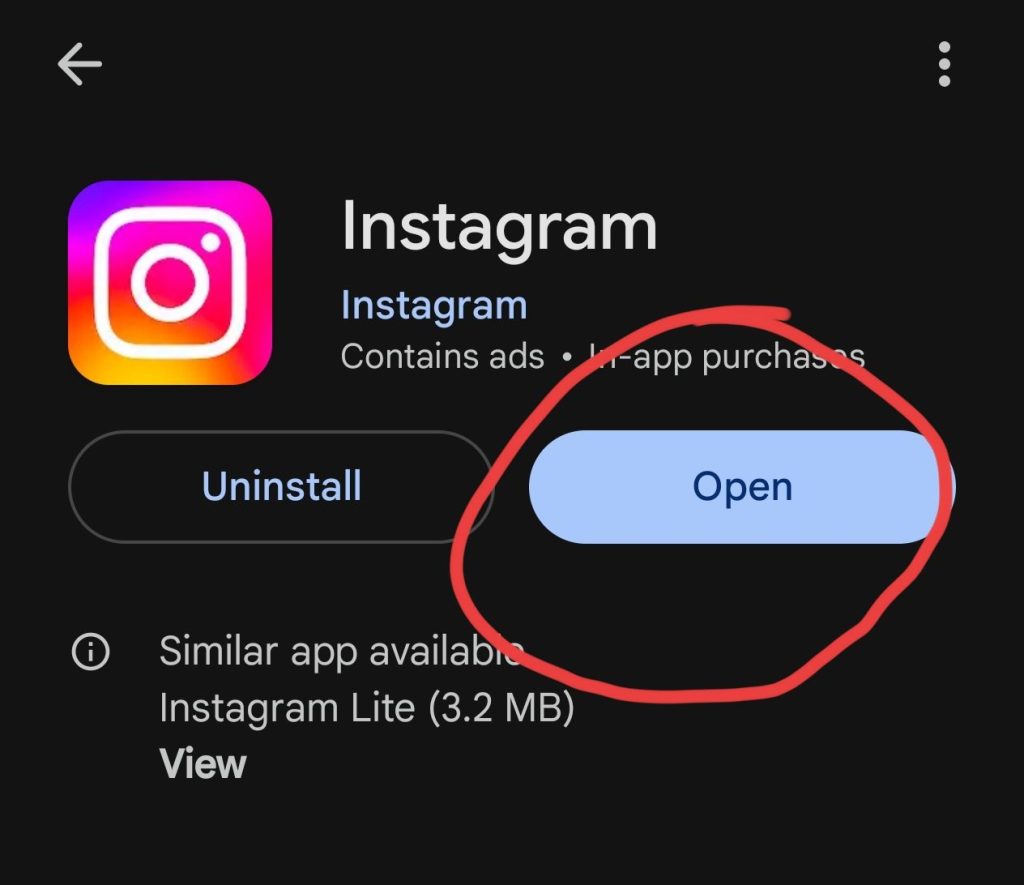
Outdated versions—especially heavy games like PUBG Mobile—frequently crash on Android 15 due to compatibility issues.
Steps:
- Open Google Play Store.
- Search for the app.
- Tap Update.
Developers often release patches specifically to fix compatibility issues.
4. Free Up RAM
Apps crash when your system runs out of available memory. This is common during multitasking, running heavy games, or using WhatsApp and the Camera simultaneously.
Fix:
- Open Recent Apps.
- Close all apps you are not using.
- Avoid running multiple background apps with high memory usage.
This allows resource-intensive apps to operate smoothly.
5. Check Storage Space
Low internal storage forces apps to crash or freeze because Android blocks processes like app loading, media decoding, and new cache creation.
Recommendation: Ensure you have at least 1 GB of free space.
Free space by deleting:
- Old videos
- Downloaded files
- Large WhatsApp media
- Unused apps
6. Disable Battery Optimization for the Affected App
Android 15 aggressively kills background apps to save battery. This is a major cause of WhatsApp background crashes and delayed messages.
Steps:
- Go to Settings > Battery.
- Tap App Optimization (or Battery Usage).
- Choose the problematic app.
- Select Don’t Optimize (or Unrestricted).
This keeps the app running reliably in the background.
7. Reinstall the App
If the installation is corrupted, the app may crash repeatedly. A clean reinstall often fixes deep-rooted issues.
Steps:
- Uninstall the app.
- Restart your phone.
- Reinstall from the Google Play Store.
Note for WhatsApp users: Ensure your chats are backed up to Google Drive before uninstalling to avoid data loss.
8. Clear App Data (Full Reset of the App)
If clearing the cache doesn’t fix it, reset the entire app’s configuration. This method fixes corrupted local databases and persistent configuration errors.
Steps:
- Go to Settings > Apps.
- Select the app.
- Tap Storage.
- Tap Clear Data.
Important: For apps like WhatsApp, backup your chats first via Settings > Chats > Chat Backup, as this will log you out and delete local data.
9. Update Android OS
Crashes may happen due to system-level bugs. Manufacturers release patches to improve app compatibility.
Steps:
- Go to Settings > System > System Update.
- Download and install available updates.
Many crash-related complaints disappear after installing the latest security or stability patch.
10. Boot Into Safe Mode
Sometimes crashes are caused by other apps. Safe Mode helps diagnose this by disabling all third-party apps and loading only system-level processes.
Steps to enter Safe Mode:
- Hold the Power button.
- Long-press the Restart option on the screen.
- Select Safe Mode.
If the app works in Safe Mode, another recently installed app is the culprit causing the conflict.
11. Disable VPN or Proxy
VPNs often interrupt connection-sensitive apps like WhatsApp, Telegram, Instagram, and games like PUBG / BGMI / Free Fire. These apps may crash due to network packet drops or high ping.
Solution: Turn off VPN and proxies temporarily, then relaunch the app.
12. Check Internet Stability
Many apps crash when the network fails during video calls, cloud syncing, game matchmaking, or media downloads.
Fix:
- Switch between Wi-Fi and Mobile Data.
- Restart your router.
- Move closer to your Wi-Fi signal.
If the app works after switching networks, the issue is connection-related.
13. Factory Reset (Use Only as Last Resort)
If the Android system itself is damaged, only a full reset will fix it. This restores your phone to fresh, stable conditions.
Steps:
- Backup your device completely.
- Go to Settings > System > Reset Options.
- Tap Erase All Data (Factory Reset).
Only use this when all other steps fail.
14. Use ADB Logcat to Identify Exact Crash Causes
Advanced users and developers use ADB Logcat to pinpoint crash errors.
Requirements:
- A computer
- USB debugging enabled
- Basic command:
adb logcat
This shows real-time logs and crash traces which you can share with developers for targeted fixes.
15. Report the Issue to the Developer
If none of the solutions work, the problem may be app-specific.
Steps:
- Open Google Play Store.
- Go to the app page.
- Tap Send Feedback.
- Attach crash logs (optional).
Troubleshooting by App Category
WhatsApp Crashing Fixes
Most WhatsApp crashes happen due to corrupted cache, battery optimization restrictions, or network instability.
- Best fixes: Clear cache, Disable battery optimization, Update WhatsApp, Backup and clear data.
Game Crashing Fixes (PUBG, BGMI, Free Fire, CODM)
Games crash frequently due to low RAM, outdated versions, high ping, or GPU overload.
- Best fixes: Free up RAM, Update game, Disable VPN, Clear cache, Ensure 1GB+ free storage.
Social Media Apps (Instagram, Facebook, TikTok)
Common causes include corrupted cache or unsupported features on older OS builds.
- Best fixes: Clear cache, Update app, Toggle network, Turn off VPN.
Advanced Tips for Preventing Future App Crashes
To keep your Android stable long-term, follow these best practices:
- Keep at least 10–15% storage free: Apps need storage for logs, cache, and temporary files.
- Avoid installing too many heavy apps: More background apps equal higher RAM usage.
- Update apps periodically: Most updates include stability improvements.
- Avoid using unknown APKs: Unverified apps can conflict with system processes and corrupt shared libraries.
- Restart your phone every few days: This keeps the system clean and responsive.
Conclusion
Most app crashes on Android 15 are easy to fix when you follow a clear troubleshooting path.
Whether it’s WhatsApp freezing, PUBG closing during gameplay, or Instagram failing to load, the 15 solutions above cover every known cause—from cache corruption to OS compatibility problems. Try each step in order, and your device should become stable, fast, and crash-free.
Your Turn
Which app on your phone is crashing the most—WhatsApp, PUBG, Instagram, or something else? Tell me in the comments and I’ll help you troubleshoot it specifically.